

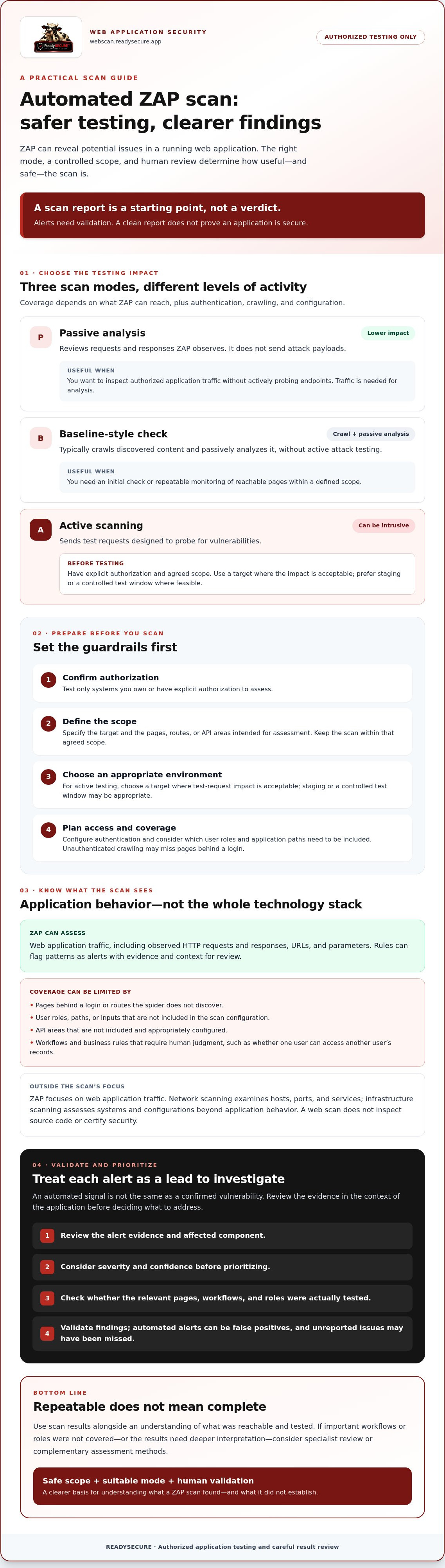
Could a scan designed to find vulnerabilities also disrupt the system you’re trying to protect? An automated zap scan can reveal potential security issues, but its safety and value depend on what you test and how deeply you scan. Passive scanning analyzes traffic without sending new requests. Active scanning sends test payloads to discovered endpoints and requires more caution.
If you’re unsure which mode to choose, how to set a safe scope, or whether an alert indicates a genuine risk, you’re not alone. A scan report is a starting point, not a verdict. Every test should stay within systems you own or have explicit authorization to assess.
This guide explains how to run a repeatable scan against an authorized target, choose a suitable scan mode, and validate and prioritize findings. You’ll also learn how to reduce scope mistakes, account for what automated testing can miss, and decide when a scan service or further assessment may be appropriate.
Key Takeaways
- Understand what ZAP can detect in a running application, and why a clean report doesn’t prove an application is secure.
- Choose a scan mode based on the test’s purpose and potential impact, from traffic analysis to active testing.
- Prepare an automated zap scan with clear authorization, defined scope, an appropriate environment, and access settings.
- Review alert evidence, affected components, severity, and confidence before deciding what to address first.
- Recognize when automated results call for specialist review or complementary assessment methods.
What an automated ZAP scan checks and what it cannot prove
An automated zap scan tests a web application you own or have explicit authorization to assess, looking for potential security issues in how the running application behaves. ZAP is a dynamic application security testing (DAST) proxy. It observes web traffic and can test discovered URLs, but it doesn’t inspect source code or certify that an application is secure. For a neutral overview of its background and core features, see ZAP (Zed Attack Proxy).
A scan result is an automated signal that needs assessment. A confirmed vulnerability is an issue validated in the context of the application. That distinction matters. An alert may be a false positive, while a scan with no alerts may have missed areas it couldn’t reach or test.
ZAP focuses on web application traffic, not general network or infrastructure exposure. Network scanning examines hosts, ports, and services. Infrastructure scanning assesses systems and configurations beyond application behavior. APIs can be tested with ZAP when they’re included and appropriately configured, but API coverage isn’t automatic just because a website scan runs.
What does OWASP ZAP inspect during a web scan?
As ZAP explores an application, it observes HTTP requests and responses, including the URLs and parameters it encounters. Its rules can flag patterns that may indicate issues, then present them as alerts with evidence and context for review. What it reaches depends on the pages exposed to the scan, whether authentication is configured, and the crawling and testing settings. A page behind a login or a route the spider never discovers may not be assessed.
What can automated ZAP scanning miss?
Automation supports repeatable checks, but it doesn’t understand every application’s intended behavior. A workflow that lets one user access another user’s records, for example, may depend on roles and business rules that require human judgment. Coverage is also limited by inaccessible pages, untested user roles, and routes or inputs outside the scan configuration.
That’s why a clean report doesn’t prove that an application is vulnerability-free. Treat alerts as leads to validate, and interpret results against the parts of the application that were actually reachable and tested. If important workflows or roles weren’t covered, the scan has a clear limitation, even when no alerts appear.
Choose a ZAP scan mode that fits your target and risk tolerance
Scan mode determines how ZAP tests, but it doesn’t guarantee broad coverage. A scan can only assess what it can reach, and authentication, crawling, and configuration all affect which pages and workflows are examined. Choose a mode based on the environment, your permission, and the possible impact of sending test requests.
When should you use passive or baseline scanning?
Passive analysis is a sensible starting point when you want to review traffic without asking ZAP to attack discovered endpoints. A baseline-style workflow adds crawling and can provide a consistent set of checks for an initial review or recurring monitoring. Neither approach tests every vulnerability class or guarantees that all application paths were found. For exact setup options, consult the official ZAP Getting Started guide.
For either mode, consider what the scanner can actually see. If a site requires login, unauthenticated crawling may miss pages behind that login. If key user roles or application paths aren’t included, the results won’t represent those areas.
When is active scanning appropriate?
Active scanning sends requests with test inputs, which may change data, trigger application behavior, or affect availability. Use it only against a target you own or are explicitly authorized to test, with a scope that names permitted hosts and boundaries. Staging is often preferable. If testing production is necessary and authorized, agree on a controlled window and safeguards first.
The right automated zap scan isn’t always the deepest one. Match scan intensity to the target’s tolerance and the assurance you need. If you’d prefer an authorized scan and prioritized report without configuring each scanner yourself, consider ReadySECURE’s scanning service, which includes ZAP alongside other scanners.
Prepare an authorized target before you automate a ZAP scan
Safe testing starts with a precise target, not a scanner setting. Before launching an automated zap scan, confirm who has approved the test, which systems are included, and what activity is permitted. Written authorization helps prevent a crawler or test request from straying onto a third-party service, shared infrastructure, or an excluded production path.
How do you set scan scope and authorization?
Write down the permitted domains, application paths, environment, and exclusions. Confirm that you own each target or have explicit written authorization to test it. For broader planning, see this web application security assessment guide. HackerOne’s overview of the key capabilities of OWASP ZAP can also help clarify what the tool may do during testing.
Use this preparation checklist before you start:
- Confirm permission. Get approval from the system owner, with the target and permitted testing activity clearly identified.
- Define scope. List allowed domains and paths, the environment to test, and exclusions. Account for redirects and linked services so the scan doesn’t cross an approved boundary.
- Select the environment. Prefer staging or another controlled target where feasible. Include production only when it’s explicitly authorized and the planned testing is acceptable.
- Configure access. Check that the application is reachable and prepare test accounts for any roles or authenticated areas you intend to assess.
- Record settings. Note the ZAP version, scan mode, crawl approach, target scope, access configuration, and testing window. This makes later runs easier to compare and reproduce.
What should you configure before a scan starts?
Match crawling and authentication to the parts of the application you need to test. For example, if an account dashboard is in scope, confirm that the test account can reach it and that the crawl can explore the relevant routes. Choose the scan mode and testing window to fit the environment and agreed boundaries. Keep a record of the settings so differences between reports can be explained.
Set a stop condition in advance. Stop the scan if it reaches an out-of-scope host or path, the application behaves unexpectedly or becomes unstable, or permission is unclear. Don’t widen scope on the fly. Confirm the boundary with the system owner before continuing.
Run the automated ZAP scan, then validate its findings
With the target and settings prepared, start the selected scan in ZAP or run the automation you’ve configured. Watch both the crawl and test activity. Confirm ZAP is reaching the intended application areas, note errors or authentication failures, and stop if the target behaves unexpectedly or activity crosses the agreed scope. When the run finishes, save the report and record the scan settings so you can interpret the results and compare them with future runs.
Don’t treat every alert as a confirmed flaw. Open each result and review its evidence, affected endpoint or component, severity, and confidence. Check whether the evidence applies to the application as configured and whether the affected route or data is accessible in the circumstances described. A low-confidence alert may need careful checking. A high-severity alert still needs context before remediation is assigned.
How should you triage ZAP alerts?
Start with the reported evidence and endpoint, then assess confidence and potential impact on the application. Separate findings you can reproduce and confirm from alerts that need further validation. Prioritize confirmed issues by considering exposure, exploitability, affected data or functions, and business context, rather than sorting by severity alone.
Scanner severity is a triage signal, not a complete assessment of business risk. A rating helps direct review, but it doesn’t account for every detail of your application, users, or operating environment.
How do you turn results into follow-up work?
For each confirmed issue, document the affected component, evidence, and validation result, then assign an owner and a remediation task. After changes are made, retest the relevant area. Use consistent scan settings where possible so you can distinguish a genuine fix from differences in scope, access, or configuration.
For recurring assessment planning, see this guide to a continuous security scanning strategy. If you’d rather have an authorized scan with prioritized findings and remediation guidance, start a ReadySECURE scan.
When a ZAP scan is not enough: choose the right next step
An automated ZAP scan can help identify potential issues in a running web application and provide a repeatable way to check covered areas. But one scanner and one scan configuration can’t answer every security question. If important workflows weren’t reached, alerts need expert interpretation, or the assessment must cover more than web application behavior, use additional methods suited to those gaps.
When should you add another assessment method?
Consider further testing when risk depends on business logic, complex authorization, or how several steps in a workflow interact. For example, an automated check may not determine whether a user should be allowed to approve a particular transaction. API endpoints may also need dedicated coverage, especially when their routes, authentication, and expected behavior differ from the website’s.
Automated scanning and manual penetration testing have different roles. Scans can check configured areas consistently, while manual testing can investigate application-specific behavior and questions that require human judgment. Neither replaces the other. If the potential impact is high or the results remain unclear, seek an appropriately qualified specialist to assess the remaining questions.
How can scheduled scanning support ongoing review?
A single scan is a snapshot. Repeat scans can help identify changes and track whether previously observed findings persist, particularly when you keep scope and settings consistent. They don’t remove the need to validate results or review new application features, but they can support a more regular view of the systems you’re authorized to test.
ReadySECURE provides authorized scanning that combines ZAP with five other scanners. Its reports prioritize findings and include remediation guidance. Paid plans add scheduling, scan history, and trend analysis. For more information about the available option for one authorized target, read about the ReadySECURE free website security scan.
Choose the next step based on the coverage you need: validate alerts, add API-focused testing, or seek specialist review for complex application behavior. To run an authorized scan against a target you own or have explicit permission to test, start a ReadySECURE scan.
Make your next scan safe, repeatable, and actionable
A useful automated zap scan begins with clear authorization and a scope that matches the systems you’re permitted to test. Choose passive or active testing based on your target and risk tolerance, then review alerts as leads to validate, not final verdicts. Keep scan settings consistent when you retest so you can track changes and confirm whether fixes worked.
For broader coverage without configuring every scanner yourself, ReadySECURE combines ZAP with five other scanners in its authorized scanning service. Reports prioritize discovered issues and provide remediation guidance, with a signed authorization record attached to each result. The service offers a single free scan of one target. Paid plans add scheduling, scan history, and trend analysis. Scanning can help identify and organize potential risks, but it doesn’t replace validation or additional assessment when application-specific questions remain.
If you’re ready to assess a website, API, or internet-facing host you own or are explicitly authorized to test, start an authorized ReadySECURE scan. A careful scope and a clear plan for reviewing results are solid steps toward better security.
Frequently Asked Questions
Is an automated ZAP scan safe to run on a live website?
It depends on the scan mode and the site’s tolerance for testing. Passive scanning reviews traffic ZAP observes and generally has lower impact, while active scanning sends test requests that may affect application behavior or availability. Prefer staging or a controlled test window when feasible. Only test a live site you own or have explicit authorization to assess, and stop if it behaves unexpectedly or the scan reaches an out-of-scope system.
Can OWASP ZAP find every vulnerability in a web application?
No. ZAP can identify potential issues in the application paths and behaviors it reaches, but scan coverage depends on crawling, authentication, user roles, and configuration. It may not recognize business logic flaws that require understanding how a feature is supposed to work. A report with no alerts doesn’t prove the application is free of vulnerabilities. Treat results as useful evidence to review, not a complete security assessment.
What is the difference between passive and active ZAP scanning?
Passive scanning analyzes HTTP requests and responses ZAP observes without sending attack payloads. Active scanning sends test requests to discovered endpoints to probe for vulnerabilities, so it can have a greater impact on the target. Passive checks are useful for lower-impact observation, while active tests need explicit authorization and a carefully defined scope. Neither mode guarantees full coverage. Pages, credentials, and crawl settings also affect what ZAP examines.
How do I run an automated ZAP scan on my website?
To run an automated zap scan, first confirm you own the site or have explicit written authorization. Define allowed domains and paths, exclusions, and the environment. Then confirm the site is reachable and configure any required test accounts. Choose a scan mode and crawl approach that fit the target. Start the scan, monitor progress for errors or out-of-scope traffic, and save the report. Review alert evidence and validate findings before assigning fixes.
Can I use ZAP to scan a website I do not own?
Only scan a website you don’t own if you have explicit authorization from the owner covering the target and permitted testing. A site’s public accessibility isn’t permission to test it. Written approval should make the scope clear, including domains, paths, environments, and exclusions. Don’t scan third-party services or shared infrastructure unless they’re specifically included. If permission or scope is unclear, don’t start the scan. Confirm authorization first.
What should I do if a ZAP scan reports a high-severity alert?
Review the evidence and affected endpoint before treating a high-severity alert as confirmed. Check the alert’s confidence, reproduce the behavior safely within the authorized scope, and assess what data or function could be affected. Consider exposure, exploitability, and business context when setting priority. If the evidence is unclear or the potential impact is serious, involve an appropriate security specialist. Document the result, assign an owner, and retest after changes.
Does a ZAP scan replace a penetration test?
No. ZAP automates checks against a running application, while manual penetration testing can investigate application-specific workflows, business logic, and complex authorization behavior that an automated scan may not understand. They serve different purposes, and one shouldn’t be treated as a substitute for the other. Use scan results to identify and validate potential issues, then consider additional assessment when important risks remain outside the scan’s coverage or require human judgment.


