

A safer website starts with repeatable security habits, not constant worry. To reduce anxiety over a website getting hacked, keep its software updated, use strong, unique passwords with multi-factor authentication, and limit the personal information you store or share. These steps reduce common risks and make it clearer which parts of security you can control.
It’s understandable to feel uneasy when a website holds personal or business information. Security isn’t a one-time task, but a few practical routines can make it easier to manage without treating every login or alert as a crisis.
This article explains how updates help close security gaps, how safer login practices protect accounts, and how data theft can affect you. You’ll also find practical steps for backups, cautious browsing, and checking a website’s security, so you can respond with more confidence.
Key Takeaways
- Keep operating systems, apps, routers, and connected devices updated to reduce exposure to known security flaws.
- Use long, unique passwords and multi-factor authentication to make stolen credentials harder to reuse.
- Review what personal information is publicly visible and remove online accounts you no longer use.
- Build a steady security routine, including encrypted backups and tested restores, so you have practical steps to follow.
- Use a website scan to identify security issues and understand which ones need attention first.
1. Keeping operating systems, apps, routers, and IoT devices updated
Outdated software can leave known weaknesses open to attack. Attackers may exploit a flaw in a website platform, plugin, operating system, or router to gain access and reach accounts or data. Updates replace vulnerable code, so make them part of a regular security routine rather than waiting for a problem to appear.
How often should website software, plugins, and themes be updated? Install security updates promptly and review available updates regularly. If your platform supports automatic updates, enable them where suitable. First, confirm you have a recent backup and a way to restore the site if an update disrupts it.
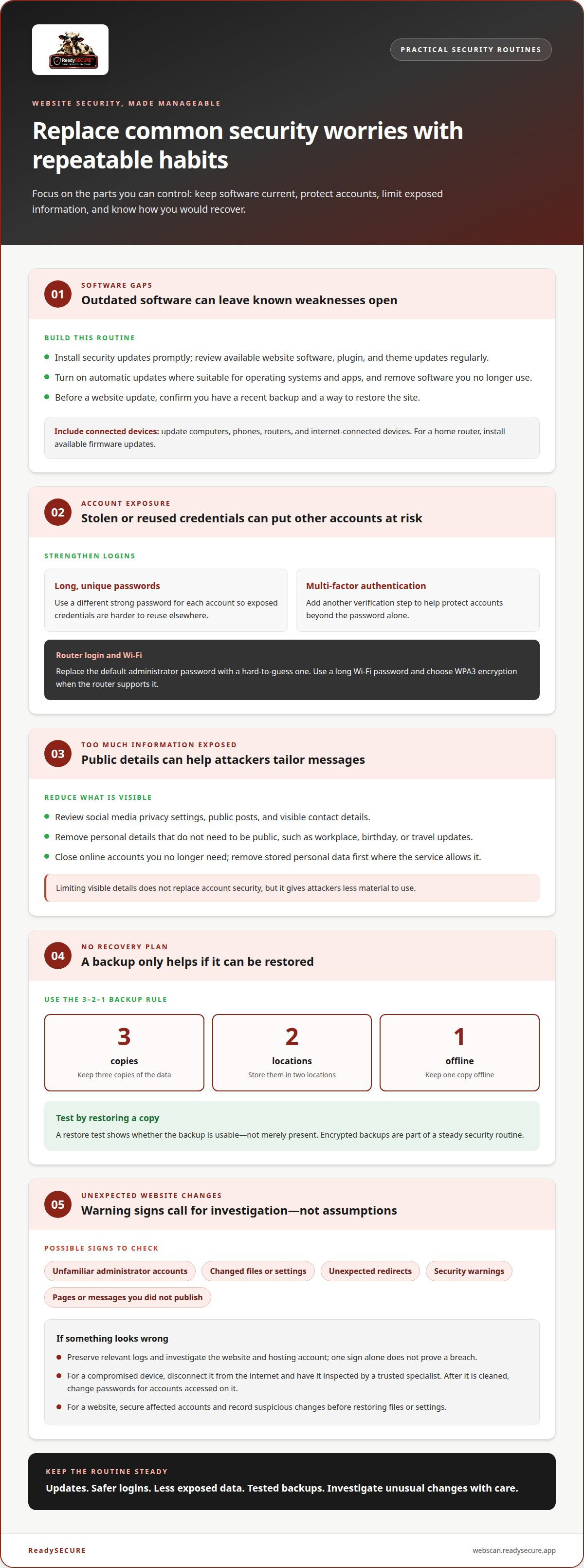
Apply the same habit to computers, phones, routers, and internet-connected devices. Turn on automatic updates for operating systems and apps, and remove software you no longer use. Unused plugins and applications still create possible entry points if they remain installed. For a home router, install its available firmware updates, replace the default administrator password, and use a long, hard-to-guess Wi-Fi password. Choose WPA3 encryption when the router supports it.
How can you tell whether your website has been hacked? Watch for unfamiliar administrator accounts, changed files or settings, unexpected redirects, security warnings, and pages or messages you didn’t publish. These signs can have other causes, so preserve relevant logs and investigate the website and hosting account rather than assuming one sign proves a breach.
What should you do after a device or account is hacked? Disconnect a compromised device from the internet and have it inspected by a trusted specialist, as advised by the Minnesota Attorney General’s Office. After the device is cleaned, change passwords for accounts accessed on it. For a website, secure affected accounts and record suspicious changes before restoring files or settings.
How do website backups help, and how often should backups be tested? Backups provide copies of website data that can help restore content after damage or unauthorized changes. Keep three copies in two locations, with one offline, following the 3-2-1 rule, and test by restoring a copy. Testing shows whether the backup is usable, not merely present.
Who is responsible for website security with managed hosting or a website builder? Responsibility is shared: the provider manages parts of its platform, while site owners still need to protect accounts, review access, and manage the content and settings available to them. Confirm which controls you can manage in your hosting or builder account.
After a suspected website data breach in the United States, identify what information was exposed and who may be affected, then assess applicable notification duties. Requirements and deadlines depend on the relevant jurisdiction and the type of data involved. Use those details to determine the next response steps.
2. Risks of stolen personal information and login credentials
Stolen information can give attackers more than access to one account. A public email address, reused password, or exposed phone number can help them target other accounts with convincing messages. They may use personal details to impersonate a business, request a password reset, or make a fraudulent payment request. Treat unexpected login alerts and messages about account changes as signals to investigate.
Reduce what strangers can learn from public profiles. Review social media privacy settings, check which posts and contact details anyone can see, and remove information that doesn’t need to be public. A workplace, birthday, or travel update can help someone tailor a phishing message. Limiting visible details doesn’t replace account security, but it gives attackers less material to use.
Unused accounts deserve attention too. Delete accounts you no longer need, especially those holding old profile details or saved payment information. Before closing one, remove stored personal data where the service allows it. Don’t assume an old account is harmless: login details exposed in a breach may be tried against services you still use.
How can you check whether your information appears in a data breach? Look for notices from services where you have accounts, then sign in through the service’s official app or by typing its known address yourself. Review account activity and follow the provider’s password-reset instructions if it reports exposed credentials. Don’t download an attachment or click an unexpected breach-alert link; it could deliver malware or lead to a fake login page.
Use account alerts as an early warning system. Enable notifications for unfamiliar sign-ins, password changes, new devices, and payment activity where available. If an alert appears, open the account directly, review active sessions, sign out unknown devices, and change the password from a trusted device. These steps help distinguish a real account event from a deceptive message.
Financial details need a separate response. If a hacked account contains bank or credit card information, contact the bank or card company immediately and monitor transactions for unfamiliar charges. Record the alert, when you noticed it, and any account changes. That information can make it easier to explain what happened when reporting suspicious activity.
For a website owner, stolen customer information can also damage trust and create urgent decisions. Limit staff access to customer records, remove data the site no longer needs, and investigate unusual account activity promptly. A security review can help identify website weaknesses that put information at risk. You can scan a website for security issues as one practical part of that review.
Revisit social media privacy controls regularly and enable them where possible. Closing unused online accounts also reduces the chance that their login details will be used to target accounts that remain active.
3. Using password managers, strong passwords, and multi-factor authentication
Reusing a password creates a direct path from one stolen login to others. If an attacker obtains your email password, they may try it on social media, shopping, or website administration accounts. Give every account its own long, hard-to-guess password. This limits the damage if a service exposes your login credentials.
The Minnesota Attorney General’s Office recommends strong online passwords of at least 12 characters. Use a longer passphrase that’s difficult to guess, rather than a familiar name, date, or simple keyboard pattern. A password manager can generate unique passwords and store them securely, so you don’t have to remember each one. Protect the manager with a strong master password.
Choose a password manager carefully and secure its recovery method. Keep its app updated, use a unique master password, and enable multi-factor authentication if available. Store recovery codes somewhere safe, separate from the device you use to sign in. If you lose access to the manager, those codes or its recovery process may help you regain access to your saved passwords.
Multi-factor authentication adds another check beyond the password. It can require a code generated by an app, a code sent by SMS, or a physical security key. The Minnesota Attorney General’s Office describes multifactor authentication as potentially requiring a four-digit code in addition to a password. A code-generating app is generally more secure than SMS, while a physical security key offers a stronger layer than an app.
Prioritize authentication on accounts that can unlock others. Secure your email first, because password-reset messages often arrive there. Then enable it for website administration, financial services, messaging, and social media accounts that hold personal information. Keep backup codes in a protected place, and never share a login code with someone who contacts you unexpectedly.
Router credentials need separate attention. Change the router’s default administrator password, which controls settings, and set a different, long password for Wi-Fi access. Reusing either password for an online account makes it easier for one compromised credential to create another threat. WPA3 encryption can protect a home wireless network when the router supports it.
For a website, limit administrator accounts to people who need them, and give each person an individual login. Shared credentials make it harder to identify which account triggered a change. Remove access when someone no longer manages the site, and store service credentials in a password manager rather than a shared document or message.
Make account protection repeatable: generate unique passwords, enable an additional authentication factor, and secure router access. These steps can’t prevent every threat, but they reduce the chance that one exposed password opens several doors. Review account recovery settings regularly, since an outdated recovery email or phone number can weaken otherwise strong authentication.
Anxiety about hacking and data security
Cybersecurity concerns are common, but repeated checking can make each alert feel urgent. In a survey published by Arbor Networks, 75% of adults said they were concerned about security, privacy, malware, and website tracking. A practical response is to separate routine precautions from signs that need investigation, rather than treating every unfamiliar message as proof of hacking.
Choose a simple routine for reviewing security. Check account alerts, website activity, and device updates during planned review sessions, then act on specific changes you can verify. For example, an unfamiliar administrator account deserves investigation; a general news story about hacking doesn’t show that your own website is compromised. Regular reviews keep your attention on evidence and help prevent constant monitoring.
Set clear rules for incoming messages. Question an unexpected link, even if the sender’s name looks familiar, and download files only from sources you know and trust. If a message asks for sensitive information, verify the request by calling the person or contacting them through another channel. Pausing to verify can help you avoid a convincing impersonation.
Your connection matters when checking accounts. The Minnesota Attorney General’s Office advises using a secure internet connection and says a smartphone’s cellular data network is generally more secure than a public or unsecured connection. Avoid opening sensitive accounts on public Wi-Fi when you can use a trusted network or cellular connection instead.
Protect your computer and the information stored on it. Use antivirus software on a home computer, encrypt backups of phones and computers, and keep recovery copies in a secure place. For messages and calls, end-to-end encrypted services can help protect communications. These safeguards reduce exposure without requiring you to inspect every device constantly.
For a website, make a short response plan before an incident occurs. Record who can access the hosting account, where logs and backups are kept, and who will review an unexpected change. If a warning appears, preserve the message, note what changed, and investigate the relevant account or device. A written process turns a vague fear into a defined next step.
Limit how much security news you consume if constant updates increase distress. Focus on practical changes that affect your accounts or devices, and review your security regularly as threats evolve. Multi-factor authentication, encrypted backups, and cautious link handling are useful controls, but you don’t need to check every notification repeatedly.
If fear of hacking feels pathological or disrupts daily life, consider speaking with a therapist about phobias. For immediate concerns, return to observable evidence: an account alert, an unfamiliar file, or a website change. Respond to that specific signal, document what you did, and then follow your normal security routine.
5. What practical steps can reduce the risk of a website being hacked?
A website is more secure when several controls work together. Start by identifying the information the site stores, the people who can access it, and the systems connected to it. That inventory helps you prioritize sensitive customer records, administrative accounts, and services whose disruption could affect the site.
Encrypt sensitive files and information stored online or sent by email. Encryption makes information harder to read if someone gains access to a file or message. Collect only the customer data your website needs, and remove information that no longer serves a clear purpose. Less stored data means fewer records to protect and assess after an incident.
Prepare for recovery as well as prevention. The 3-2-1 backup rule recommends keeping three copies of data in two locations, with one copy offline. Set automatic backups to cloud and offline storage, then test a restore instead of assuming the copies work. A test can reveal missing files, damaged archives, or a restore process that needs clearer steps.
Control access to the website’s administration area. Give each staff member an individual account with only the permissions needed for their role. Remove access when responsibilities change, and review active accounts regularly. For example, a content editor may need to publish pages but not change payment settings or manage other users.
Keep a record of important site changes. Note who changed administrator permissions, installed an extension, or modified a payment setting. If an unfamiliar change appears, these records help narrow the investigation. Also document where website backups, account recovery details, and incident contacts are kept, so the response doesn’t depend on one person’s memory.
Train anyone who edits the site or handles customer data. Use realistic examples, such as a message asking an employee to download an unexpected attachment or share account details. Explain how to report suspicious requests and where to send them. Ongoing cybersecurity training helps teams spot risks before a careless click becomes a website problem.
Review the site’s security posture regularly, including its public-facing pages and exposed services. A scan can help surface issues that deserve investigation, while a prioritized report makes it easier to decide what to address first. Use an authorized website vulnerability scan to assess a website or host you control.
These measures reduce avoidable exposure and give you a recovery plan if something goes wrong. Assign an owner to each task, record its completion, and revisit the plan when the site, its users, or its stored information changes. This structure turns security from an occasional reaction into a manageable routine.
Make backup checks practical: restore a copy and confirm it works, rather than assuming a completed backup means the data can be recovered when needed.
ReadySECURE: ReadySECURE Free Scan
ReadySECURE Free Scan gives website owners a practical way to look for security issues on sites they control. Submit the domain with written authorization, and the platform runs scheduled vulnerability scans. The resulting report prioritizes discovered issues, explains their severity, and provides remediation guidance, helping you decide what to address first.
Use it when you want a clearer view of a website’s exposure alongside routine updates, strong access controls, and tested backups. ReadySECURE Paid Plans, TestSSL Inspection, and ZAP Active/Passive Scanning are also available for different scanning needs. Scanning can inform security decisions, but it doesn’t replace maintaining the site or responding to identified issues.
Visit ReadySECURE to review website scanning.
Make your next security step deliberate
Security is easier to manage when responsibility is clear. Choose who will review website access and findings, and record the next action in one place. Clear ownership can reduce anxiety over the possibility of your website getting hacked by turning concerns into a specific, considered response instead of repeated checking.
Use your review to identify what needs attention now and what can be scheduled. If a scan or alert raises a concern, note the affected system and the evidence behind it before deciding how to respond. A clear record also helps you track whether the issue was addressed and what still needs follow-up.
If you want support assessing your website’s security, contact ReadySECURE for support. A measured next step can help you move forward with greater clarity and keep your security routine manageable.
Frequently Asked Questions
What are the most common ways websites get hacked?
Attackers often exploit weaknesses in website software, steal administrator credentials, or abuse insecure forms and file uploads. For example, a poorly restricted upload field could let someone submit a file the site was never meant to accept. Third-party integrations can also create risk if they have excessive access. Review plugins, forms, integrations, and administrator activity as separate parts of your site’s security picture.
How can I secure website logins with strong passwords and multifactor authentication?
Protect every administrator login with a unique password and multi-factor authentication, then secure the account’s recovery options too. Keep recovery email accounts protected, store backup codes separately from the device used to sign in, and remove access for former staff. For a team, assign named accounts instead of sharing one login. That makes unusual sign-ins easier to trace and access easier to revoke.
How can website owners manage anxiety and avoid excessive checking about security threats?
Set a written threshold for action, such as investigating an unfamiliar administrator account or an unexpected change to a payment page. Routine scan findings and confirmed signs of unauthorized access are different situations, so record each finding, its evidence, and its next review step. This can reduce anxiety over a website getting hacked by making your attention evidence-based, rather than prompting repeated checks after every security headline.


