
A padlock icon is not a security plan. Securing a website without a security engineer starts with layered basics: update your content management system and plugins, limit account access, enable multifactor authentication, choose secure hosting, and keep restorable backups. HTTPS encrypts data in transit between a visitor’s browser and your server, but it won’t remove malware or stop attempts to break into accounts.
You don’t need to become a security specialist to make informed choices. You do need to understand what each protection covers, where its limits are, and how the pieces work together. That makes it easier to prioritize practical steps instead of relying on one feature to protect the entire site.
This guide covers core layers of website security, from caching and firewalls to access controls, hosting, HTTPS, and backups. It also explains how regular security assessments can uncover weaknesses routine maintenance may miss, helping you decide what to fix first and what to monitor over time.
Key Takeaways
- Keep your site’s software updated, scan for vulnerabilities, and prioritize patches based on the risks they address.
- Understand how caching, firewalls, and content delivery networks support a site, and where each layer’s protection ends.
- Use multifactor authentication, unique passwords, and role-based access to reduce account-related risks.
- Choose secure hosting and use SSL to encrypt data in transit, while recognizing that SSL does not protect against every threat.
- Assess your site regularly to identify weaknesses and guide the next steps in your security plan.
1. What is website security?
Website security is the set of practices that protect a site, its users, and its data. It covers the software running the site, the server hosting it, and the accounts that can change it. A compromised plugin, stolen administrator password, or exposed database can each provide a route for attack. Strong security reduces vulnerabilities and helps protect customer trust and business reputation. It combines maintenance, access controls, backups, and regular checks rather than relying on a single tool.
Start by listing your content management system (CMS), themes, plugins, and server software. For a WordPress site, record the installed WordPress version and every active plugin. Remove extensions you no longer use, since unused code still needs maintenance and can pose security risks. Check for updates regularly, apply fixes in a staging environment when available, then confirm key pages and forms still work. Record update dates and any errors that need follow-up.
Vulnerability scanning helps identify exposed services, outdated components, and known weaknesses. Treat scan results as a work queue: review the affected system, assess the finding’s severity, and schedule a fix. A scan can reveal issues, but it doesn’t apply patches or prove that every weakness has been found. The Cybersecurity and Infrastructure Security Agency (CISA) recommends that organizations patch critical vulnerabilities on internet-accessible systems within 15 days and high vulnerabilities within 30 days. Apply the relevant priority to your own patch process.
What U.S. privacy and data-breach notification rules apply to a small business website? Requirements depend on the data collected, the business’s activities, and the states connected to affected customers. Inventory personal information, identify where it is stored, and determine which state and sector-specific requirements apply before an incident. This preparation helps clarify what information needs protection and which notification duties may apply.
What are the costs of website security tools and managed services for small businesses in the United States? Costs depend on scope, features, monitoring, and support; service pricing depends on the case and is given after a quote request. Compare what each tool scans and reports, and whether ongoing management is included, before choosing an option.
How often should a website be backed up, and how do you test restoring it? Schedule automated backups daily at a minimum, store a copy offsite, and follow the 3-2-1 rule: three copies, two media types, and one offsite copy. Test by restoring files and the database in a separate environment, then check pages, forms, and account access. A backup that hasn’t been restored successfully is untested recovery.
What should a small business do after a website breach or ransomware incident? Limit further access by isolating affected systems, preserving logs, and changing compromised credentials from a clean device. Identify affected accounts, site files, and customer data before restoring from a clean backup. Document the incident and follow applicable notification requirements. After recovery, patch the entry point and review access permissions to reduce the risk of a repeat.
2. Caching, web application firewalls, and content delivery networks
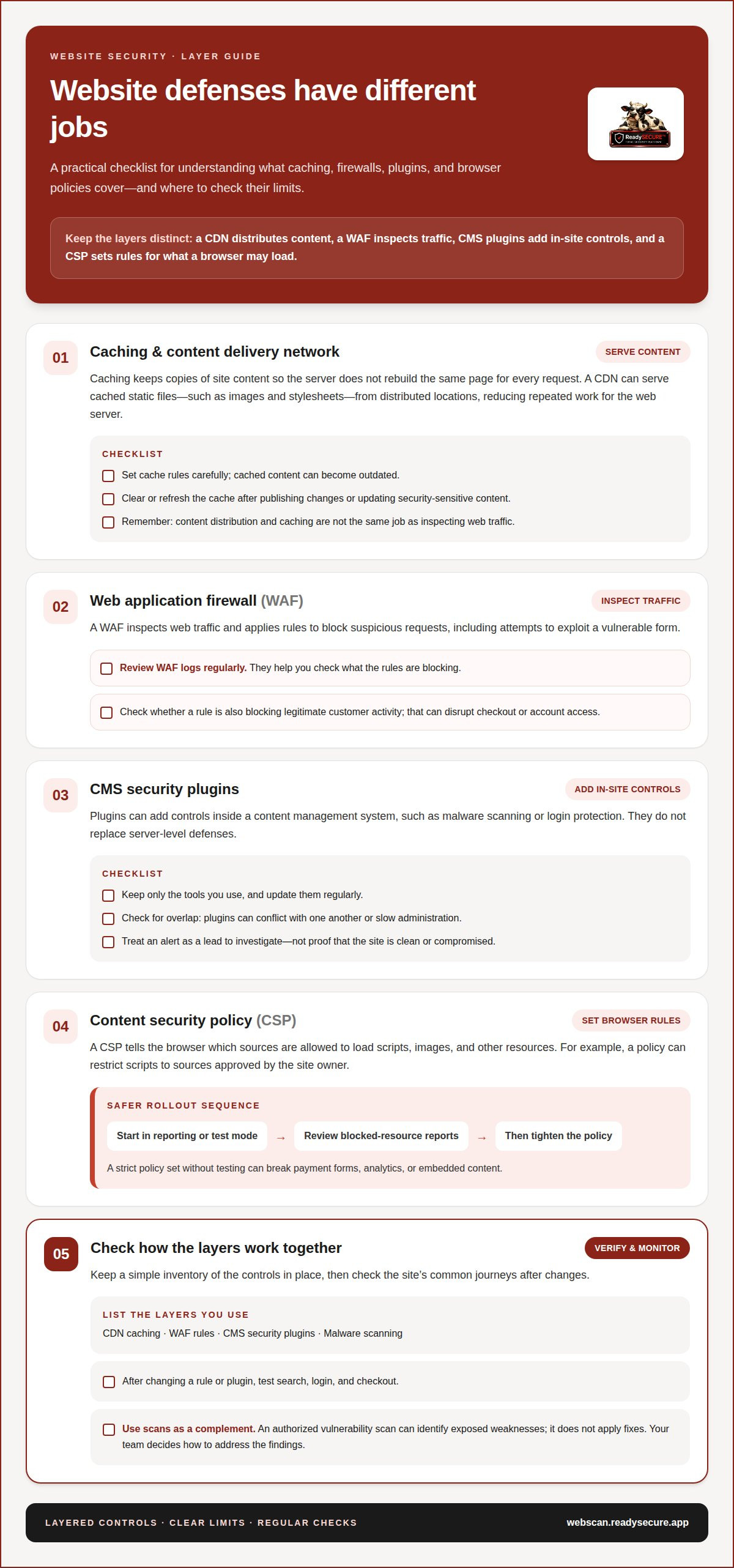
Caching stores copies of site content so a server doesn’t have to rebuild the same page for every request. A content delivery network (CDN) can serve cached images, stylesheets, and other static files from distributed locations. This reduces repeated work for the web server, but cached content can become outdated. Set cache rules carefully, and clear or refresh the cache after publishing changes or updating security-sensitive content.
A CDN and a web application firewall (WAF) do different jobs. A CDN distributes content and can reduce direct requests to the origin server. A WAF inspects web traffic and applies rules to block suspicious requests, such as attempts to exploit a vulnerable form. Review the WAF’s logs regularly, since a rule that blocks legitimate customer activity can disrupt checkout or account access.
Security plugins can add controls inside a content management system, such as malware scanning or login protection. They don’t replace server-level defenses, and overlapping plugins can conflict or slow administration. Keep only the tools you use, update them regularly, and check whether alerts point to a file, account, or request that needs investigation. Treat an alert as a lead, not proof that the site is clean or compromised.
A content security policy (CSP) is a browser instruction that limits which sources can load scripts, images, and other resources. For example, a policy can restrict scripts to sources the site owner has approved. Start in reporting or test mode where available, review blocked-resource reports, then tighten the policy. A strict policy set without testing can break payment forms, analytics, or embedded content.
What are the best managed website security services for nontechnical owners? Choose a service that clearly explains what it monitors, how it reports findings, and whether it applies fixes or only identifies issues. A scanning report can help prioritize weaknesses, while firewall rules, malware checks, and incident-response responsibilities need separate, explicit coverage.
For a practical review, list the layers already in place: CDN caching, WAF rules, CMS security plugins, and malware scanning. Then test common journeys, including search, login, and checkout, after changing a rule or plugin. If you want evidence about exposed weaknesses, an authorized website vulnerability scan can complement these traffic controls; scanning identifies findings, while your team decides how to address them.
3. Multifactor authentication and least privilege
A website account can become an entry point when a password is reused, guessed, or exposed. One reported figure says 53% of users have not changed their passwords in the previous 12 months. Start with accounts that can publish content, change settings, or access customer information. Protecting those accounts reduces the chance that a malicious login can change the site or misuse its data.
Multifactor authentication (MFA) requires another verification step beyond a password. For example, an account may request an authenticator app code or a security key after password entry. Two-factor authentication (2FA) is MFA that uses two factors. If an attacker obtains a password, the additional step can make account access harder. The Cybersecurity and Infrastructure Security Agency (CISA) recommends enforcing MFA on all internet-accessible accounts, prioritizing privileged accounts.
Enable MFA first for administrator accounts, hosting control panels, domain registrars, and email accounts used for password resets. Then apply it to other website users wherever the platform supports it. Store recovery codes securely and document who can use them. A recovery process that relies on one shared email account can undermine MFA if that inbox is compromised.
Use a password manager to generate and store a unique password for each account. The guide recommends passwords that are at least 16 characters long. Avoid default usernames such as “admin,” and don’t reuse a password between the CMS, hosting panel, and domain registrar. If a platform supports separate usernames, choose an account name that isn’t easy to guess from the public website.
Least privilege means giving each person only the access required for their assigned work. A content writer may need permission to draft or edit pages, but not to install plugins or change administrator accounts. Give a freelancer the role needed for a specific task, then remove access when the work ends. This limits what a compromised account can change.
Review the user list regularly. Remove outdated accounts, disable unused access, and review permissions for agencies, freelancers, and temporary staff. Check the CMS, hosting dashboard, and domain registrar separately, because access in one system doesn’t reveal accounts in another. Keep a simple record of each user’s role and reason for access.
Review access whenever someone joins, changes duties, or leaves. Confirm their account owner, permissions, MFA status, and recovery method. If a team member reports an unexpected login prompt, reset their password from a trusted device, revoke active sessions where possible, and inspect recent account activity. These steps make access controls practical to maintain, even without a dedicated security engineer.
4. Secure web hosting and SSL certificates
Your web host controls the server environment that delivers your site to visitors. A secure hosting setup should protect the web server, restrict administrative access, and provide a clear way to apply server updates. Hosting security matters because an outdated server component can expose a site to cyberattacks, even when its pages use HTTPS.
According to the Cybersecurity and Infrastructure Security Agency (CISA), NIST Special Publication 800-44 is guidance on securing public web servers. Use it as a reference when reviewing server configuration, access controls, and maintenance responsibilities. For a small business, the practical step is to identify which server tasks the host manages and which remain your responsibility.
Find out how your hosting arrangement handles operating-system and server-software updates, backup storage, and malware cleanup. Responsibilities depend on the hosting plan and the division of work between the provider and site owner. Write down who applies updates, who restores backups, and who investigates malware alerts. This helps prevent gaps between the host’s server responsibilities and your CMS or plugin maintenance.
SSL/TLS certificates enable HTTPS by encrypting data moving between a visitor’s browser and the website’s server. This helps protect sensitive information in transit, such as details entered into a sign-in form. Check that the certificate is valid, covers the correct domain, and renews before expiry. Many modern hosting providers offer certificates through Let’s Encrypt that can be activated with one click.
HTTPS is not a complete defense. It doesn’t remove malware from the server, prevent brute-force attempts against a login page, or fix vulnerable site software. Treat the browser’s secure connection indicator as evidence that data is encrypted in transit, not proof that every part of the website is safe.
How do website hosting providers handle security updates, backups, and malware cleanup? Providers may manage server-level updates or backups, while the site owner remains responsible for CMS files, plugins, and account security. Confirm the responsibilities in your hosting plan, including how backups are stored and how malware findings are reported or handled.
Test the setup with practical checks. Open the site using HTTPS, confirm key pages load, and submit a test form without entering real customer data. Review the certificate status in the browser, then check your host’s control panel for backup and security settings. If a certificate warning appears, pause use of sensitive forms until the configuration is corrected.
Choose hosting based on the site’s needs, available server controls, and the support responsibilities you can manage. A clear division of tasks helps keep threats visible and reduces the risk of assuming someone else is handling an important update.
5. Assessing website security
A security assessment turns scattered alerts into a prioritized view of website risk. Start by listing the site’s public pages, login areas, forms, APIs, hosting environment, and third-party integrations. Include the domain and any internet-facing systems the business controls. This inventory defines the assessment’s scope and helps prevent testing from reaching systems outside your authority.
Use vulnerability scanning to identify potential weaknesses in the approved scope. A scan can flag exposed services, outdated software, or risky web application behavior. It cannot prove that every issue has been found or determine every business impact by itself. Review each result, confirm the affected asset, and record its severity, evidence, and next action. The 72% figure for vulnerabilities attributed to flaws in web application coding reinforces the value of assessing application behavior alongside server exposure.
Use the OWASP Top 10 as a reference for major web application security risks. The Cybersecurity and Infrastructure Security Agency (CISA) identifies it as a reference for the most critical web application security risks. Compare assessment findings against relevant categories, such as access control problems or injection risks. This gives nontechnical owners a recognized structure for discussing issues with developers and prioritizing fixes.
- Record the assessment date, scope, and systems included.
- Group findings by affected asset, severity, and evidence.
- Assign each issue an owner and a planned remediation step.
- Retest important fixes to confirm the weakness is addressed.
- Keep previous reports so new findings can be compared over time.
Review the assessment regularly. Website owners are advised to conduct security audits quarterly. Also reassess after a major change, such as adding a payment form, deploying a new plugin, or changing hosting. Comparing reports can show whether new vulnerabilities appeared and whether earlier fixes remain effective.
Pair technical findings with operational checks. Review login activity and audit logs for unfamiliar accounts, unexpected permission changes, or unusual administrative actions. Confirm that the latest backup can be restored, then document the result alongside assessment findings. These checks connect technical exposure with account activity and recovery readiness, giving you a more useful picture than a scan report alone.
Protecting a website requires action after assessment: prioritize exposed, high-impact weaknesses, assign owners, and track remediation through retesting. For an authorized scan of systems you control, scan your website for vulnerabilities and use the findings to guide your next security review.
ReadySECURE: ReadySECURE Free Scan
ReadySECURE Free Scan gives website owners a practical starting point for checking security weaknesses. ReadySECURE scans websites and other internet-facing systems that owners control, with written authorization. Its findings are prioritized by severity and include remediation guidance, helping you decide what to address first. Use a scan when you need a clearer view of exposed issues or want technical findings to support a regular security review.
For more focused checks, ReadySECURE also offers TestSSL Inspection and ZAP Active/Passive Scanning. Scanning identifies potential issues; your team remains responsible for deciding how to apply fixes and verify changes. To begin an authorized website scan, visit ReadySECURE.
Make security part of every site change
Build security reviews into the way you manage website changes. Before adding an integration, form, or user account, note what information it can access and who will maintain it. After the change, check that the relevant pages and permissions still work as intended. This makes security a routine part of site ownership rather than a one-time project.
Securing a website without a security engineer is more manageable when every action has an owner and a follow-up date. Keep a short record of unresolved findings, planned fixes, and changes that need another review. If you need ongoing scanning beyond an initial check, ReadySECURE Paid Plans provide a next step for continued assessment.
Ready to discuss which assessment fits your site? Contact ReadySECURE about website security. A clear view of your site’s risks can help you choose the next practical action and keep improving its protection with confidence.
Frequently Asked Questions
What is website security?
Website security means reducing the chance that someone can misuse your site, accounts, or stored information. It includes technical controls and routine decisions, such as limiting who can publish pages or access customer records. For example, a small shop should consider both its checkout form and the administrator accounts that manage it. The goal is to identify likely ways into the site, reduce exposure, and know how to respond if something goes wrong.
Does SSL protect my website from being hacked?
No. SSL/TLS certificates support HTTPS by encrypting data as it travels between a visitor’s browser and your server, such as information submitted through a contact form. They don’t fix vulnerable software, remove malicious code, or prevent someone from guessing a password. Keep HTTPS enabled, but assess the site’s software and accounts separately. If a browser reports a certificate problem, avoid entering sensitive information until the connection works correctly.
What are the essential website security steps for a small business without a security engineer?
Securing a website without a security engineer starts with a short, maintained security routine. Assign an owner for software updates, account access, backups, and incident response. Keep an up-to-date inventory of site components and business-critical accounts, then record unresolved security findings with an assigned next step. For example, a shop owner might review administrator access whenever a staff member changes roles and test recovery before relying on a backup.
How do you secure a website with HTTPS, secure headers, and strong TLS settings?
Use a valid certificate for the site’s domain, redirect HTTP traffic to HTTPS, and review server settings to allow current, supported TLS configurations. Add security headers that fit the site’s behavior. For example, Content-Security-Policy can restrict where scripts load, while frame controls can reduce unwanted embedding. Test changes on a staging site first, because a restrictive policy may block payment forms, analytics, or other required content.
How do you keep a CMS, plugins, themes, and dependencies secure and up to date?
Maintain an inventory of the CMS, themes, plugins, and third-party libraries, not just visible extensions. Subscribe to update notices from their maintainers, remove components the site no longer needs, and review release notes before significant changes. Apply updates in a staging environment when possible, then test key functions such as login, search, and checkout. If a component is unsupported, replace it rather than leaving it in place indefinitely.
What are the best practices for administrator accounts, passwords, and multifactor authentication?
Give each person an individual account, use a unique password stored in a password manager, and enable multifactor authentication wherever available. Limit administrator access to people who need it for their work. Store recovery codes securely, and make sure a trusted account owner can regain access if a device is lost. When someone leaves or changes roles, adjust or remove their permissions and review recent account activity.
How can you scan a website for vulnerabilities and malware without a security team?
Use an authorized vulnerability scan to identify exposed services and potential application weaknesses; use a separate malware-scanning feature from your CMS or hosting environment to check files. ReadySECURE Free Scan covers one target and requires written authorization. The authorization record includes the approver, the exact text they agreed to, and the approval date and time. It has to be something you are authorized to have tested. Review findings and assign fixes rather than treating a scan as remediation.


