

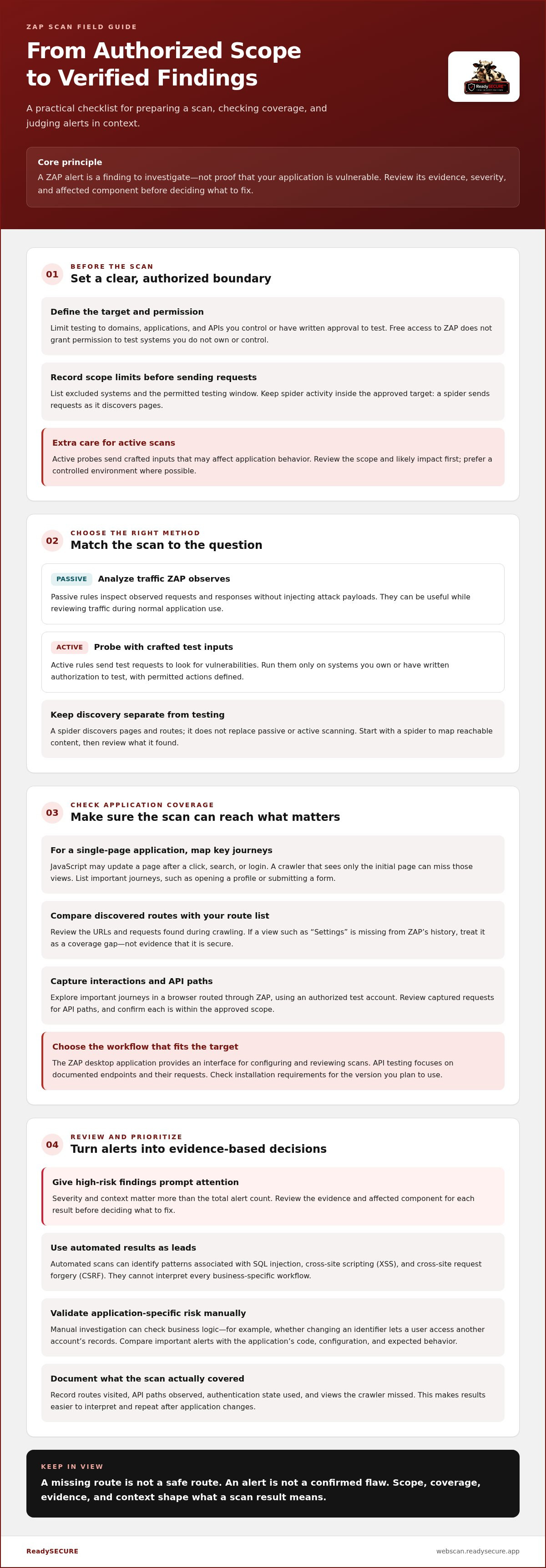
A ZAP alert is a finding to investigate, not proof that your application is vulnerable. An online ZAP security scan checks a web application for potential security issues. Before deciding what to fix, review each result alongside the affected component and the report evidence. Scan only systems you own or are authorized to have tested.
It’s easy to focus on the number of alerts, but severity and context matter more. Give high-risk findings prompt attention. Other alerts may need manual validation or may not apply to how your application is built.
This guide explains how to prepare an authorized target, run a ZAP scan, and interpret results without treating every warning as a confirmed flaw. It also covers the difference between active and passive scanning, what to prioritize in a report, and how to choose a scanning plan that suits your needs.
Key Takeaways
- Use automated scanning to identify potential vulnerabilities, then recognize when deeper manual testing is needed to assess application-specific risks.
- For single-page applications, account for how the scanner discovers routes and content that load dynamically.
- Choose passive or active scanning based on the test’s purpose, and understand how active probes can affect the target.
- Read each alert by reviewing its evidence, severity, and affected component before prioritizing a response.
- Use ReadySECURE Free Scan when you want a practical starting point for scanning an authorized website or host.
Automated scans versus manual penetration testing
Yes. OWASP ZAP is open source and free to use, including for online security scans. Free access doesn't grant permission to test systems you don't own or control.
- Define and authorize the target before scanning. Limit the scope to domains, applications, and APIs you control or have written approval to test. Record excluded systems and the permitted testing window. This is especially important for active scans, which send requests designed to identify weaknesses and may affect application behavior. A spider also sends requests as it discovers pages, so keep its scope within the authorized target.
- Choose a scan based on the question you need answered. An automated security scan can quickly identify patterns associated with issues such as SQL injection, cross-site scripting (XSS), and cross-site request forgery (CSRF). It cannot interpret every business-specific workflow. Manual penetration testing adds human investigation, such as checking whether changing an identifier lets a user access another account’s records. Use automation to find leads, not to assume every alert confirms an attack path.
- Start with a spider scan to map reachable content. ZAP offers three spiders to crawl web applications and discover links and routes before testing. For a single-page application, check whether the crawl reaches content loaded through client-side interactions. A route the spider never visits cannot be meaningfully assessed by a later scan. Review discovered URLs and remove anything outside the approved scope before proceeding.
- Select a desktop or API workflow that matches the target. The ZAP desktop application provides an interface for configuring and reviewing scans, while API testing focuses on documented endpoints and their requests. Check the installation requirements for the version you plan to use. For either workflow, limit the target and test data to authorized resources. An online ZAP security scan should have a defined scope before you start, not after alerts appear.
- Run an active scan only after reviewing its scope and likely impact. Unlike passive analysis of observed traffic, active scanning sends test inputs to probe the target for vulnerabilities. These requests can resemble an attack, so avoid unapproved production testing and use a controlled environment where possible. Compare important alerts with the application’s code, configuration, and expected behavior. ZAP identifies potential weaknesses; a person must determine whether each finding is exploitable in context.
Does ZAP handle single-page applications?
- Map how the single-page application (SPA) presents content before testing it. Unlike a traditional web application, an SPA may load one page shell and update its content with JavaScript. A crawler that sees only the initial response can miss views that appear after a click, search, or login. List key user journeys, such as opening a profile or submitting a form, to set a clear coverage goal for the scan.
- Use ZAP to discover application paths, then compare them with your route list. Start from the SPA’s main page and review the URLs or requests found during crawling. If selecting “Settings” opens an account page, confirm that the corresponding view appears in ZAP’s history. A missing route is a coverage gap, not evidence that the route is secure.
- Manually explore important journeys in a browser configured to send traffic through ZAP. Sign in with an authorized test account, open key views, and submit representative forms. This reveals requests that automated application security testing may not trigger on its own. For example, search for a product, change the filters, and inspect whether those client-side actions generate API requests in ZAP.
- Include API routes in the target map. SPAs often retrieve data from separate endpoints, so scanning only the visible page may miss requests that handle records or account changes. Review ZAP’s captured requests, identify the application’s API paths, and confirm they fall within the authorized scope. Test representative requests and responses for issues such as SQL injection, cross-site scripting, or improper access controls.
- Use caution when scanning a production application. Active probes can send unusual inputs that affect application behavior, while live users may share the same data or workflows. Prefer a staging environment with representative routes and test accounts. If production testing is necessary, obtain authorization, define the target and permitted actions, and avoid sensitive transactions. ZAP supports security testing, but it does not replace penetration testing that investigates business logic and context.
- Record what the scan covered and what required human interaction. Note the SPA routes visited, API paths observed, authentication state used, and any views the crawler missed. This makes the results easier to interpret and repeat after application changes. For an authorized target, an online ZAP scan can provide another way to examine application exposure.
What is the difference between the passive and active scan?
Passive scanning analyzes traffic ZAP observes; active scanning sends test requests to probe the target. A spider discovers application pages, but does not replace either scan mode.
- Choose the scan mode based on the impact you can allow. Passive rules inspect requests and responses without injecting attack payloads, making them useful for reviewing traffic during normal application use. Active rules send crafted inputs to test for vulnerabilities. Run active scans only against systems you own or have written authorization to test, with the target and permitted actions clearly defined.
- Understand the scan labels before starting. A baseline scan can focus on crawling and passive findings rather than active attacks. An automated scan can combine crawling with active testing, while a full scan typically performs both discovery and active checks. Review the selected configuration, because scan names can vary depending on the tool or workflow launching ZAP.
- Allow scan duration to reflect the target. ZAP’s spider scan usually takes a few seconds, but that describes crawling, not every type of scan. A broader active scan can take longer depending on reachable pages, server response, authentication, and enabled rules. Review progress and discovered paths instead of treating elapsed time as a reliable estimate of completion.
- Separate web application checks from exposed-service checks. ZAP examines web traffic and application behavior; it does not map open ports or other network services. Use an authorized port-scanning workflow to identify exposed services, then use the results to determine which web hosts and applications need closer testing. Keep network targets within the approved scope.
- Choose where and how to run the scanner. A desktop session lets you browse the application manually through ZAP and inspect captured traffic. A server-side, headless deployment is suited to repeatable automation, including scheduled scans in a controlled pipeline. For online scanning of a website or IP address, specify the authorized target precisely and align the configuration with the service being assessed.
- Plan repeat scans around application changes. Continuous or scheduled passive scanning can review traffic as workflows run, while manual active scans provide deliberate probing after a change or before release. Record the target, scan mode, authentication state, and findings so you can compare later results. This makes web application security testing more useful than running an unspecified scan and relying on its alert count.
Running OWASP ZAP through a cloud-hosted Docker image
A cloud-hosted Docker image runs Zed Attack Proxy (ZAP) without a separate Java installation. Follow these steps to set up the scan, define its scope, and review what it can discover.
-
Start Hosted OWASP ZAP Scanning
Choose a cloud platform where you control the Docker deployment, then launch the ZAP image. Docker versions don't require Java to be installed separately, unlike the Windows, Linux, and cross-platform desktop versions. Plan for at least 2 GB of RAM, the stated minimum for the OWASP ZAP Docker service. Starting both cloud services is expected to take about 2-3 minutes.
- Set the scan target and authorization before running any checks. Enter only a website, API, or host you own or have written permission to test. Keep the permitted domain and paths clear in the configuration, especially if the application uses separate API routes. An online scanner can send traffic from outside your network, so confirm that its target resolves to the approved system.
- Choose a scan mode suited to the platform and its environment. A passive scan inspects observed requests and responses; an active scan sends test inputs to probe for vulnerabilities. Spider the approved application first, then review discovered paths before active testing. Avoid broad targets such as an entire shared network if you intend to assess only one web application.
-
Test for OWASP Top 10 Vulnerabilities
Use the OWASP Top 10 as a guide for organizing vulnerability testing, not as proof that one scan covers every risk. ZAP can test for issues such as SQL injection, cross-site scripting, and cross-site request forgery. Review each detected alert alongside its evidence and affected route. A scanner’s finding needs context, particularly when the reported behavior depends on application logic.
- Keep the Docker deployment controlled during penetration testing. Restrict access to the scanning platform and avoid exposing credentials or sensitive test data in logs. Use a staging application where possible, because production requests can affect real workflows. Record the target, scan mode, and configuration so the team can see which routes and checks produced each result.
- Export and review the results when the scan completes. Group alerts by severity and affected component, then verify high-priority findings against the relevant request and response. A missing alert does not establish that a vulnerability is absent, and a detected alert is not automatically exploitable. Use manual review to assess business logic and routes the spider did not reach.
Interpreting scan results and alerts
- Start with the report’s scope and scan mode. Confirm the target, routes, authentication state, and rules used. An active scan sends test requests, while passive analysis reviews traffic ZAP observed. These settings determine what the software could detect. If the scan did not reach a login-protected section, its absence from the report does not show that it is secure.
- Prioritize severity, then examine confidence. A high-severity alert can indicate substantial potential impact, but its confidence rating reflects how strongly ZAP supports the finding. Neither label alone proves exploitability. Open the alert and review its evidence, affected URL, parameter, and suggested solution. For example, a suspected injection alert needs to be assessed in the context of its request and response before assigning remediation work.
- Validate the evidence in the affected application. Reproduce the reported request in a controlled environment and compare the response with expected behavior. Check whether the affected parameter reaches a sensitive operation or whether encoding changes the reported output. An open-source scanner can identify patterns automatically, but the application’s code and configuration determine whether a pattern represents a real vulnerability.
- Separate confirmed issues from false positives and coverage gaps. A scanner may flag a defensive header as missing on one route even though it is configured correctly on another. Record the affected path and verify the response directly. Also review crawl history for pages the scan never visited. A clean-looking report cannot cover a project component the scanner did not reach.
- Turn validated alerts into prioritized fixes. Group findings by affected component and shared cause. If several routes expose the same unsafe configuration, fix the underlying software or server setting rather than closing alerts one by one. Assign an owner, document the evidence, and retest affected routes after changes. Keep the original report to compare findings across scans.
- Use results to plan the next authorized scan. Install updates, adjust configuration, and rerun the relevant checks after remediation. Compare new evidence with the previous report, including alerts that remain or have changed severity. An online ZAP security scan can help produce findings for review; run an authorized vulnerability scan when you need a structured report for an in-scope website or host.
For local review, the ZAP web interface is accessible at localhost:3000; the author built the Node.js interface app over a couple of days.
ReadySECURE: ReadySECURE Free Scan
ReadySECURE Free Scan is a practical next step for assessing an authorized website or host. ReadySECURE’s scanning service requires a domain and written authorization, then provides a prioritized report detailing discovered issues, their severity, and remediation guidance. Each result includes a signed authorization record, connecting the findings to the approved target.
For ZAP-focused testing, ReadySECURE offers ZAP Active/Passive Scanning. ReadySECURE Paid Plans are also available alongside TestSSL Inspection when you need broader scanning. These scans help identify potential issues, but findings still need to be reviewed in the context of your application and configuration.
To start with an authorized scan, visit ReadySECURE’s scanning platform.
Make Your Next Scan Part of the Security Process
Turn scan results into a practical follow-up plan. Assign responsibility for reviewing findings, record which issues need investigation, and schedule a retest after changes. An online ZAP security scan is most useful when it leads to decisions and follow-through, rather than sitting in a report.
Choose the next step based on your goal: ReadySECURE Free Scan for an initial assessment, ReadySECURE Paid Plans for ongoing scanning, or TestSSL Inspection for a focused review of SSL configuration. Keep testing limited to systems you own or are authorized to have tested.
If you’re ready to plan an authorized scan, contact ReadySECURE about your scan. A careful review and a clear next action can help your team make steady progress.
Frequently Asked Questions
Which plan includes OWASP ZAP?
ReadySECURE Free Scan and ReadySECURE Paid Plans include ZAP scanning. Both include ZAP Passive and ZAP Active, alongside the service’s other scanners. The free scan covers one authorized target; paid plans add scheduling and scan history. Choose the free scan for a one-time assessment, or a paid plan for recurring scans and a record of how findings change over time.
Can ZAP scan behind a login?
Yes. ZAP supports form-based, script-based, JSON, and NTLM authentication, so it can reach protected application areas when configured for the login method. Use a dedicated test account and confirm the session remains authenticated as ZAP visits relevant pages. For example, verify that a scan reaches a private dashboard rather than stopping at the sign-in screen. Keep the account and target within your approved test scope.
Ready to run a ZAP scan in seconds?
A ZAP scan should not be promised in seconds. ReadySECURE reports that most scans finish in a few minutes, while deep network scans have a three-hour cap. Before starting, enter a domain, host, or URL you control and complete authorization. The record includes the approver, the exact text they accepted, and the approval date and time. Then select scanners and review the report.
What is active scanning?
Active scanning sends test requests to probe an application for vulnerabilities, rather than only inspecting traffic already observed. ZAP Active can test for issues such as cross-site scripting, SQL injection, and server-side request forgery. For example, it may submit crafted input to a search field and inspect the response. Run active tests only against an authorized target, because the probes interact directly with the application.
What is passive scanning?
Passive scanning reviews requests and responses as they pass through ZAP, without sending attack payloads to test the application. It can help identify concerns in observed HTTP or WebSocket traffic, but assesses only traffic ZAP actually sees. For a useful review, browse important workflows through ZAP, such as sign-in and account settings, then inspect alerts tied to those requests.
What types of website vulnerabilities does OWASP ZAP detect?
OWASP ZAP can identify potential issues including SQL injection, cross-site scripting (XSS), and cross-site request forgery (CSRF). Its findings depend on the application paths, traffic, and scan rules it can assess. For example, an alert on a search parameter points to an area for investigation, not automatic proof of an exploitable flaw. Review the evidence and affected route before prioritizing remediation.
What is OWASP ZAP and what does an online ZAP security scan do?
OWASP ZAP, or Zed Attack Proxy, is an open-source tool for testing web application security. An online ZAP security scan sends or analyzes web traffic to identify potential weaknesses in an authorized target. For example, it can examine a site’s responses for signs of common injection or scripting issues. Treat the report as a starting point for review, not a substitute for understanding application-specific risks.
How can I run an OWASP ZAP scan against a website online?
Use a hosted scanning platform, enter a website you control, and provide the required authorization before scanning. With ReadySECURE, the target must have a current authorization record; without one, the scan cannot run. Select ZAP Active, ZAP Passive, or both to match your testing goal, then review the report’s affected paths and evidence. Keep the scan within the approved website and scope.


